Prepared for Bunzl Distribution
Copilot Chat basic
Your pocket companion — a quick-reference and practice guide for the secure AI workspace included with Microsoft 365. No extra license required.
Where to access Copilot Chat
The interface
Know your way around
Fourteen things worth finding the first time you open Copilot Chat.
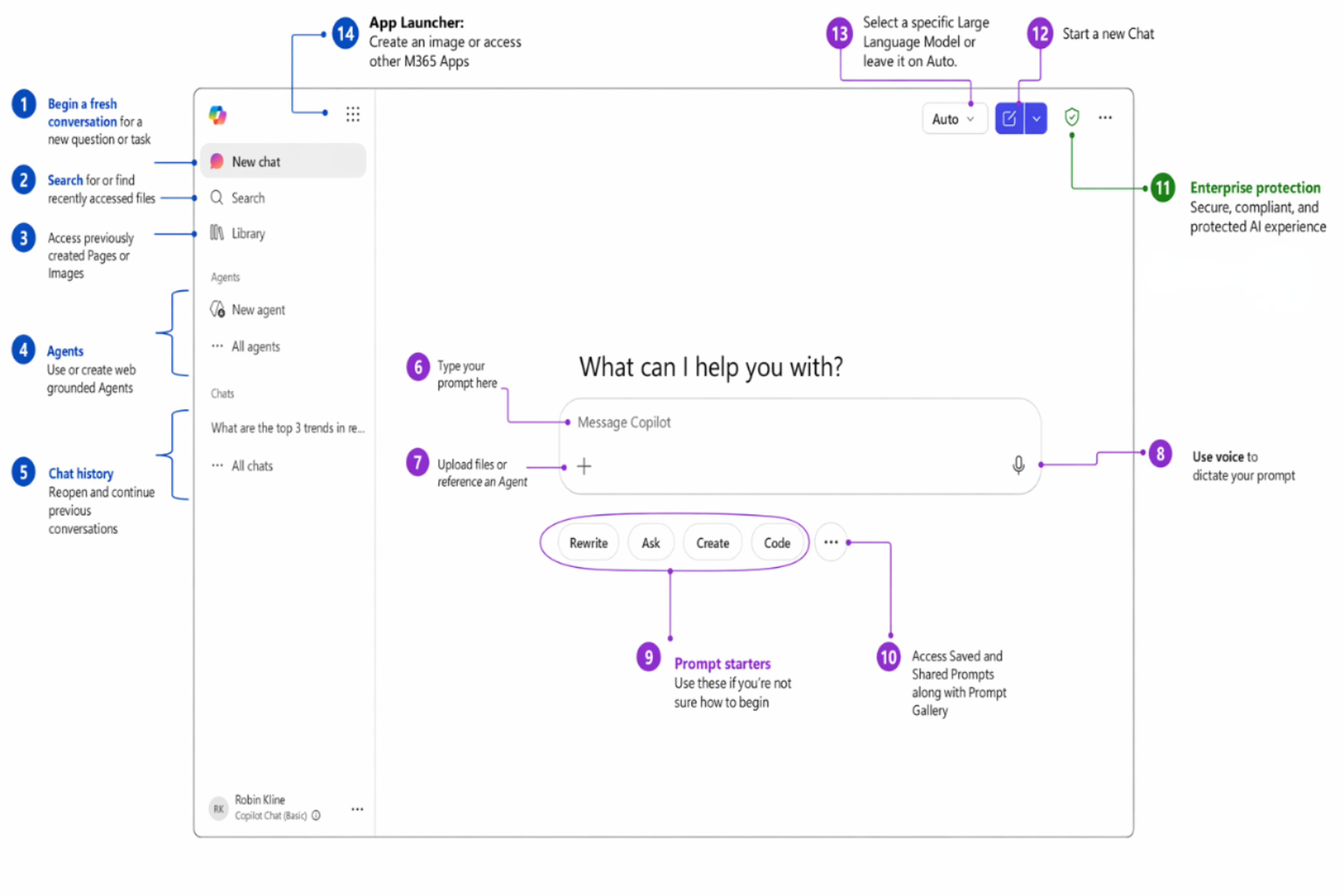
- New chatStart a fresh conversation with no prior context.
- SearchFind past chats, prompts, and content across Copilot.
- LibraryYour saved prompts and reusable pages in one place.
- AgentsSpecialized assistants for specific apps and tasks.
- Chat historyRevisit and continue earlier conversations.
- Prompt boxWhere you type your request to Copilot.
- File uploadAttach a document or image for Copilot to use.
- VoiceSpeak your prompt instead of typing it.
- Prompt startersSuggested prompts to spark ideas fast.
- Saved promptsReusable prompts you've pinned for quick access.
- Enterprise protection shieldConfirms your data stays in the secure M365 boundary.
- New chat buttonClear the screen and begin again in one click.
- Model selectorSwitch between fast answers and deeper reasoning.
- App launcherJump to your other Microsoft 365 apps.
Make it yours
Personalize Copilot once, benefit every time
Custom Instructions
Set persistent preferences that apply to every conversation — like training Copilot on your working style. Set it once; every response reflects it.
How to set it up
- Open the ⋯ menu (top right) → Settings
- Go to Personalization
- Toggle on Custom instructions → Edit instructions
- Type your preferences (or click a suggested chip)
- Click Save instructions
Saved Memories
Copilot learns context about you over time — your accounts, role, and goals — so it gives more relevant answers without you repeating yourself.
How to manage
In any chat, say "Add the following to memory: …". Review or remove entries under ⋯ → Settings → Personalization → Manage saved memories.
The framework
GCSE — the anatomy of a great prompt
Watch a prompt get better
Help me prepare talking points for a customer account review.
I'm a Bunzl account manager meeting with the procurement lead at a regional grocery chain to discuss consolidating more of their packaging, can liner, and janitorial supply spend with us for Q3. Create 5 talking points covering true case-cost savings, our 60,000+ item single-source assortment, our fill-rate and on-time delivery performance, and the working-capital benefits of our vendor-managed inventory program. Use a consultative, partnership-focused tone that positions Bunzl as a supply-chain partner, not just a vendor.
I'm a Bunzl account manager preparing for a quarterly business review with the procurement director at FreshMart Grocery, a 200-store regional chain. Bunzl is their primary distributor for foodservice disposables, can liners, and janitorial supplies, and we've been consolidating more of their nonfood spend over the past year. Review /FreshMart-Q2-Account-Review.xlsx for the latest case volume, fill-rate, and cost-savings data and create 5 talking points covering: documented true case-cost savings we've delivered this quarter, our fill rate and on-time delivery vs. SLA, two SKU-consolidation or sustainable-swap opportunities for Q3, and one supply-risk area we can help them de-risk. Format as a numbered list with a one-sentence executive summary at the top. Keep the tone confident but collaborative — this customer values data and brevity.
Quick reference
The cheat sheet
7 rules for better prompts
- 1Let it interview youFor complex or context-heavy prompts, ask Copilot to pose 5 clarifying questions before it answers — then it builds on your goal instead of guessing.
- 2Break it downMulti-step prompts beat one complex prompt. Review and refine between steps.
- 3Assign a personaTell Copilot who to 'be' for more specialized, targeted answers.
- 4Ask what it needsWhen stuck, ask Copilot what context would help most.
- 5Think end-to-endDon't just ask for a table of action items — ask for the whole follow-up email that includes it.
- 6ExperimentTry different structures, tones, and follow-ups. Curiosity reveals new capability.
- 7Iterate alwaysYour first result is a draft, not a final answer. Refine, adjust, repeat.
6 power techniques
- ▸Keep the conversation goingBuild on what Copilot gave you with follow-ups — don't start over.
- ▸Give specific instructionsTell Copilot what to include AND what to leave out.
- ▸Break it into stepsStage complex tasks instead of cramming everything into one prompt.
- ▸Assign a personaTell Copilot who to 'be' for specialized, targeted answers.
- ▸Use templates of goodGive Copilot an example document to follow for structure and tone.
- ▸Ask Copilot what it needsWhen you're stuck, let Copilot help you write the prompt.
Role add-on
Manager · a day in the life
Standups, documentation, coaching, and reporting.
☀️Team Standup Prep
Generate a reusable huddle agenda in seconds.
📝Documentation
Turn raw meeting notes into structured action items.
👥People Management
Build a fair, growth-oriented feedback template.
📊Reporting
Synthesize raw numbers into an executive summary.